Let the AI read the drawing for you
Get pipe runs, objects and the scale drawn in automatically — and know exactly what you have to check afterwards.
- 1
Put the right page on the canvas
The AI reads the page that is on the canvas right now. If the project has several plans, switch to the one you want read first.
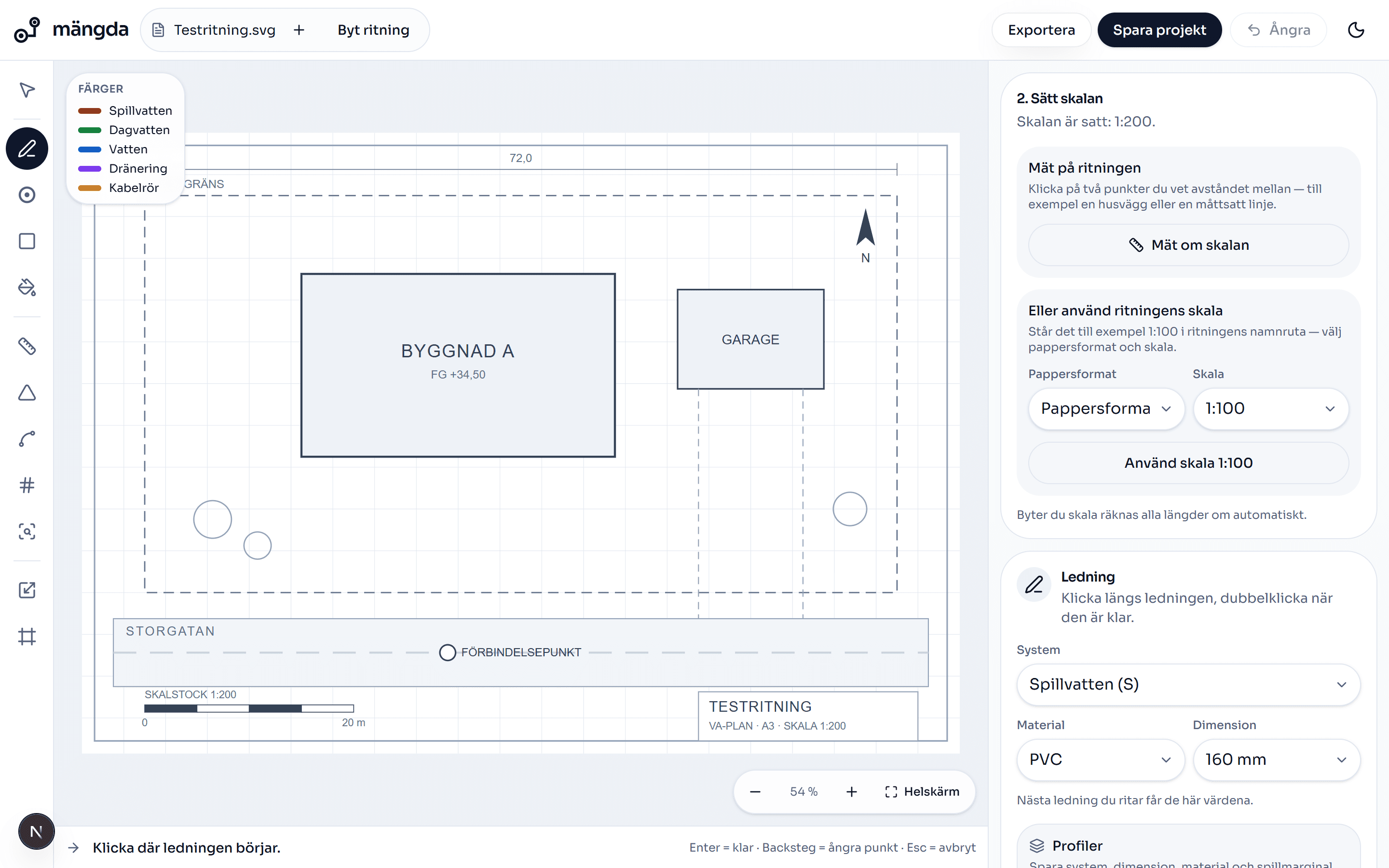
The drawing loaded — tool rail on the left, settings on the right. - 2
Press AI-read the drawing (“AI-tolka ritning”)
The button sits in the panel on the right, under Let the AI read the drawing for you (“Låt AI läsa ritningen åt dig”). While it works it says Reading the drawing… (“Läser ritningen…”) and a seconds counter ticks.
Worth knowing. Needs an account — the button is greyed out until you have logged in, and drawing and measuring work without one. Reading often takes about half a minute, and you can carry on drawing while it runs.
- 3
Read through what the AI found
At the top it says Suggestions from the AI — always check them against the drawing (“Förslag från AI — kontrollera alltid mot ritningen”). Under that is the scale it read and the row Legend (“Teckenförklaring”) with the lines it could make out.
- 4
Press Draw it all onto the drawing (“Rita in allt på ritningen”)
The pipe runs and the objects go in as ordinary pipe runs and objects, and the button changes to Drawn onto the drawing (“Inritat på ritningen”).
Worth knowing. Only what is designed gets drawn in. Anything marked as existing is skipped — it is already in the ground and is not to be taken off.
- 5
Check the scale before anything else
If the drawing had no scale set, the AI reading sets one for you. Compare it against the title block in the panel 2. Set the scale (“2. Sätt skalan”) before you trust a single length.
Worth knowing. If you set the scale yourself, it is left alone.
- 6
Go through the pipe runs against the drawing
Take Select (“Markera”) and click a pipe run that is in the wrong place. Hold Shift and drag to move the whole run, or one point at a time.
Worth knowing. The arrow keys nudge the selection a small step, Shift and an arrow key a step ten times as big. A reading that is a metre or two out is quickest put right that way.
- 7
Correct system, size and material in the list
The panel Drawn and measured (“Ritat och mätt”) lists everything that has been drawn in. Click a row and change System, Material or Dimension — or press Delete (“Ta bort”).
- 8
Undo the lot if it came out more wrong than right
Ctrl+Z removes the whole AI drawing in one go. It all went in as a single step, so you do not have to undo run by run.
- 9
Use the suggestions as you carry on drawing yourself
The list of suggestions at the bottom is marked high (“hög”), medium (“medel”) or low (“låg”). Click a suggestion and the next pipe run you draw gets its system, size and material.
Next steps
- Set the scale on the drawingTeach the tool how long a metre is on the paper, so every length you draw comes out right.5 min
- Draw a pipe runPull a pipe run across the drawing and get metres in the bill of quantities straight away.5 min
- Change size and place reducersSplit the pipe run where the size changes and get the reducer into the quantities.5 min
Do the steps on a real drawing
Open the tool and follow the walkthrough on the sample drawing that is already there. No login needed.
Open the toolStuck on a step? Get in touch — we are happy to take a look at your drawing.