Read the bill of quantities
You know what every row and column stands for, and what the waste allowance does to the total.
- 1
Find the list in the panel on the right
The heading is Bill of quantities (“Mängdförteckning”) and it sits in the panel to the right of the drawing. On a narrow screen the panel is below the drawing — scroll down.
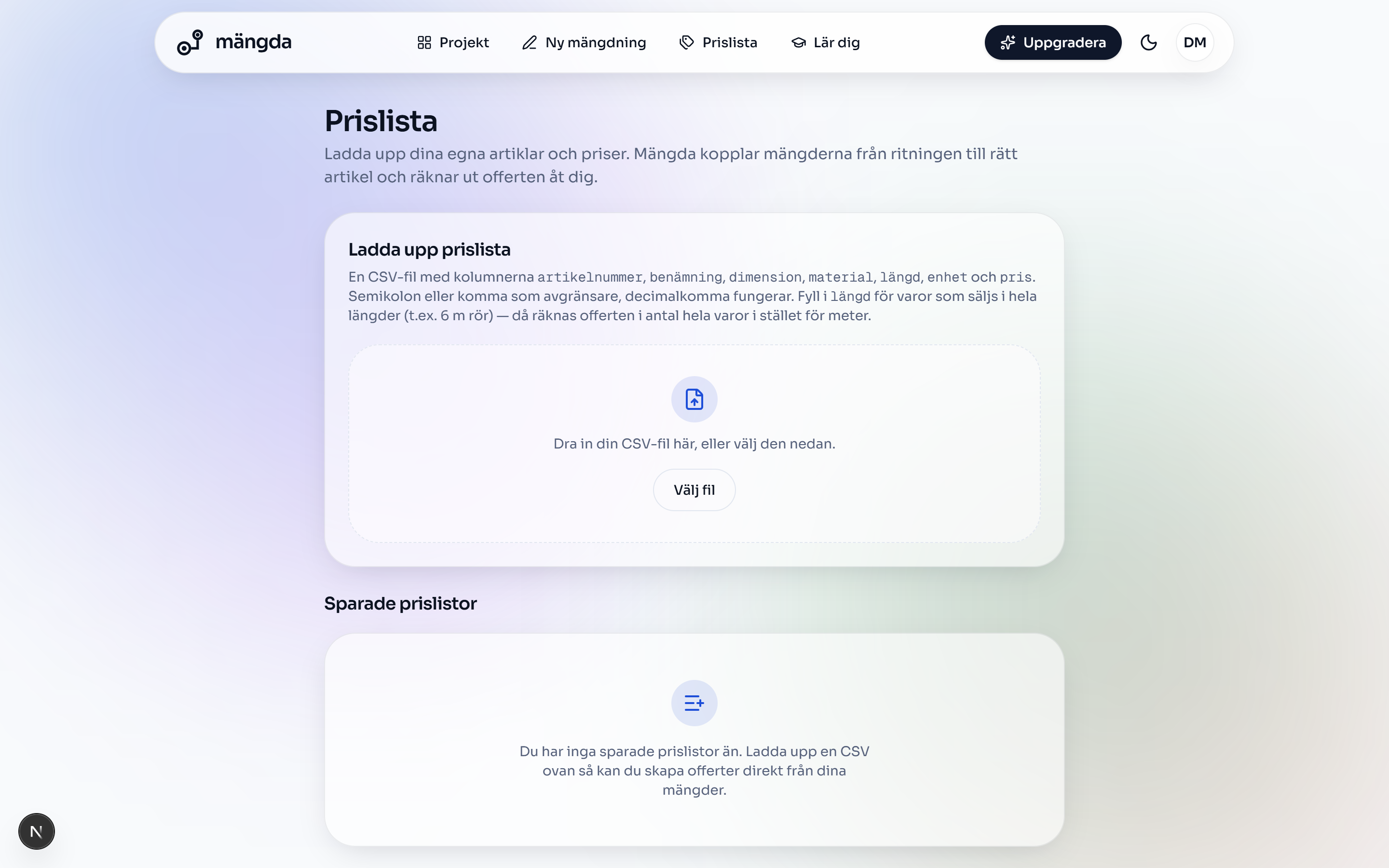
The price list: upload the CSV and check the columns in the preview. Worth knowing. In Full screen (“Helskärm”) the panel is hidden. Move the mouse towards the right edge of the screen and it slides out.
- 2
Set the scale if the lengths are missing
If it says “Längderna visas när du satt skalan” (the lengths appear once you have set the scale), the drawing has no scale yet. Click Scale (“Skala”) in the tool rail and measure up a distance you know.
Worth knowing. The scale carries through to every single length. Type 10 m for something that is really 12 and the whole list comes out 17 % short — and the quote just as much too cheap.
- 3
Read a row
A row is a combination of system, size and material. “S160 · PVC” is all the foul water in 160 PVC in the whole project, no matter how many lines you drew or on which sheet.
- 4
Compare the columns Measured (“Mätt”), Waste (“Spill”) and Total (“Totalt”)
Measured (“Mätt”) is what you have drawn. Waste (“Spill”) is the addition from the waste allowance. Total (“Totalt”) is Measured plus Waste — that is the figure you order on.
- 5
Check the Sum row (“Summa”)
The bottom row sums all the pipe runs. If the sum looks unreasonable it is almost always a run drawn twice or a scale that is wrong — not the list.
- 6
Read the separate sections under the table
Areas (“Ytor”) shows area in m² and volume in m³. Objects (“Objekt”) counts chambers, bends and junctions. Counts (“Antal”) are your own tallies and Reducers (“Övergångar”) are the size changes. Each section only turns up once you have measured something that belongs in it.
- 7
Set the waste allowance
The box Waste allowance (“Spillmarginal”) sits under the table. Type the percentage in the field, or press +0 %, +5 % or +10 %. A new take-off starts at 5 %.
Worth knowing. The waste allowance is only counted on the lengths of the pipe runs — not on areas and not on the number of objects. 5 % on 400 m gives 20 m of extra pipe, but zero extra square metres and zero extra chambers.
- 8
Count on the quote pricing Total (“Totalt”)
The quote and every export use the column Total (“Totalt”), not Measured (“Mätt”). Raise the waste allowance from 5 % to 10 % and the sum in the quote goes up straight away.
Next steps
- Put right an item that was matched wrongEvery row in the quote points at the right item, including the one the automatic matching could not manage.5 min
- Pick the right export formatYou know which file the customer, the estimate and the back-office system are to have — and where the watermark ends up.4 min
Do the steps on a real drawing
Open the tool and follow the walkthrough on the sample drawing that is already there. No login needed.
Open the toolStuck on a step? Get in touch — we are happy to take a look at your drawing.